|
Overview
OrderStream provides the ability to establish rack and bin locations and assign these rack and bins to specific items. When inventory transactions are performed, such as adjustments or receipts, the user selects the applicable predefined rack and/or bin location from a drop down menu. The benefit of using predefined rack and bin locations is increased accuracy; manually typing racks and bins into a text box can lead to accidental entry errors.
The rack and bin functionality is enabled by navigating to Utilities > Application Preferences. View the General System preference tab and direct your attention to the Inventory section. The two preferences which affect Rack and Bin are contained within the red box in the image below.
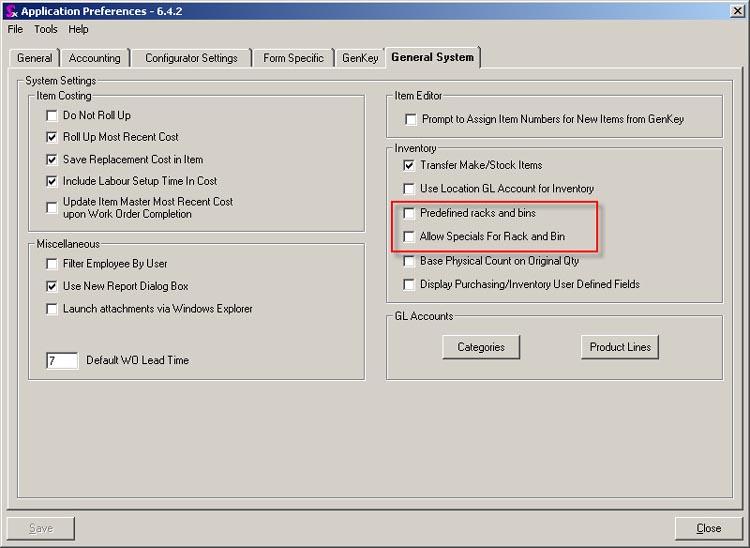
Check the Predefined racks and bins option to enable the predefined rack and bin functionality. With this option alone selected, users will only be able to select rack and bins which have been created against a selected location.
If there is a requirement that the assigned rack and bin must be overridden with a rack and bin which has not been created previously check the Allow Specials For Rack and Bin preference.
Creating Predefined Racks and Bins
To create predefined rack and bin locations navigate to Inventory > Rack & Bin Setup. The form displayed in the image below will open.
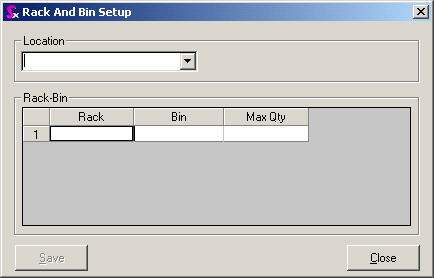
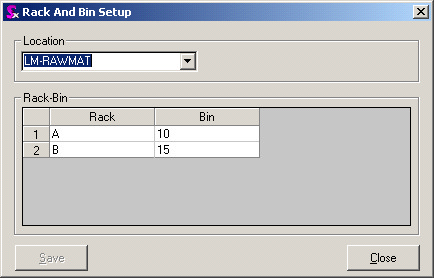
Racks and Bins are set up against inventory locations. Select the inventory location from the Location combo then press the Insert key to add a new line in the Rack-Bin section of the form. Enter the Rack and/or Bin information in the respective fields. Click the Save button when all information has been entered.
Assigning Racks and Bins to Items
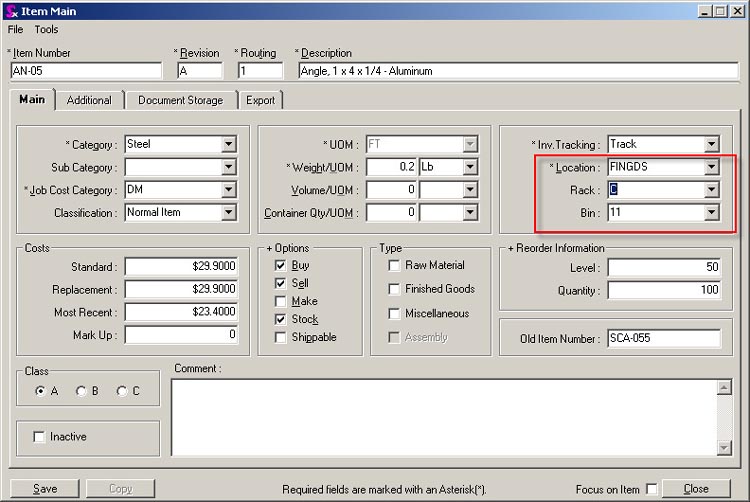
Open the Item Editor and select and item to which a rack and/or bin is required to be assigned. The racks and bins defined in the rack and bin setup module will be available in the Rack and Bin combos if the default location of the item is set to the location the rack and bins were created against.
Assigning Predefined Racks and Bins to Transactions
When processing transactions, such as a purchase order receipt, the Location, Rack and Bin will default to the settings applied to the item in the Item Editor (unless the location has been modified on the purchase order prior to the receipt being generated).
If you are required to select another rack or bin that has been previously set up, simply click the rack or bin field to display the combo button then click the button to open the combo to reveal the existing racks and bins. Then click on the desired rack or bin to select it and close the combo. Make sure you save the transaction to apply the change.
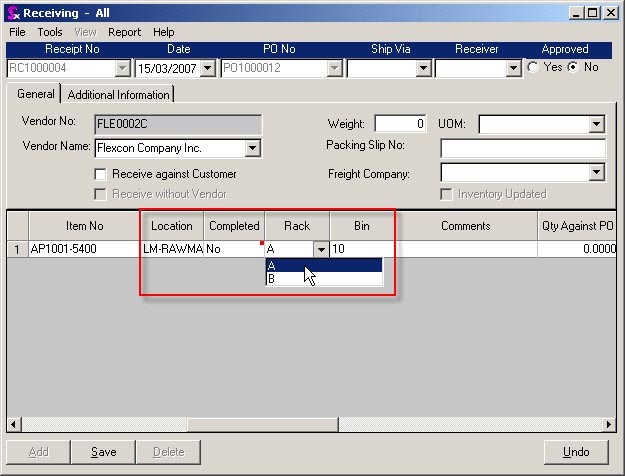
If the Allow Special for Rack and Bins application preference is enabled, you are able to enter text free form into the rack and bin fields as well as selecting an existing rack and bin.
This functionality is consistent throughout the system where racks and bins can be selected, such as Work Order, Inventory Transfer and Inventory Adjustment.
|


